
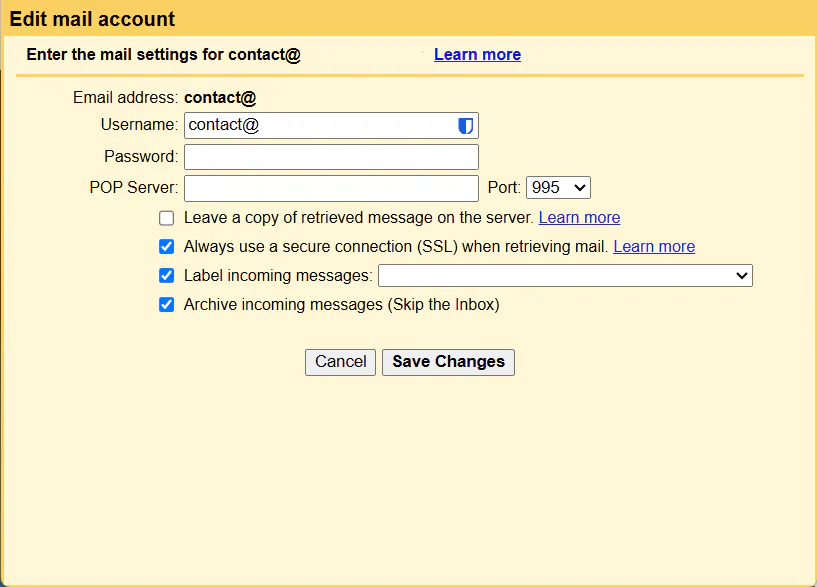
In 2026, Google has announced that it is shutting down its Gmail's POP3 fecthing feature (Settings --> Accounts and Import --> "Check mail from other accounts") and also Gmailify. The change will impact new users from the first quarter of 2026, while existing users can continue to use it until January 2027. Google mentioned that this change won't affect users who access third-party emails through the Gmail mobile app on Android, iPhone, and iPad.
Google's POP3 fetching feature was widely used by users around the world, who took advantage of this valuable and free feature to manage their business communications easily (with professional/branded domain email addresses, like contact@mydomain.com) from a single unified dashboard (with just one Gmail sign-in). Users could automatically retrieve (typically every 30 minutes) their emails from multiple email accounts into the Gmail inbox via the POP server; however, it is no longer available (even in Google Workspace). Don't worry! We're here to help you find great replacements.
What is POP3?
POP3, or Post Office Protocol version 3, is an old but popular (incoming) email protocol that simply retrieves emails messages from a remote server to a client device over a TCP/IP connection (its standard port is 110, while port 995 is used for secure connections) at certain time intervals (not real-time). POP3 protocol can be used with both email software and web-based email clients to check emails from third-party accounts (such as Yahoo, AOL, Outlook, or Hotmail). As soon as the client pulls the email from the POP3 server, the message gets deleted from the POP server, and the message copy is only available on the client.
One of its downsides is that it only allows for one-way email syncing. This means that if the user uses multiple devices, their actions will not be reflected, as these actions do not send updates back to the server. IMAP (Internet Messaging Access Protocol), on the other hand, which is another mail protocol, stores email messages on a remote server (until deleted by client) instead of storing them locally. This feature is perfect for managing emails on multiple computers and devices simultaneously, ensuring that all emails are synchronized across all devices. You can read more about the differences between IMAP and POP3 on this Microsoft's article.
What is Gmailify?
This feature allows you to apply various special and advanced functionalities from the Gmail app to third-party (~non-Google) email accounts (Like Yahoo, or Outlook). These functionalities aim to enhance your email experience and improve productivity. Among them you can find spam protection, and inbox organization (automatic email sorting and faster search).
Gmail's POP3 Alternatives
Discover the alternatives, both free and paid, and you'll see they aren't too far off from Gmail's built-in POP3 mail fetch feature.
1. Using a Dedicated Importer Service via Google API.Importing services are a great replacement for Google's POP3 fetching feature. These services can fetch emails from POP/IMAP servers directly into Gmail inbox via Gmail's official API. The process is:
- 1. You grant their app access to the Gmail API (with the least amount of permissions necessary, excluding the ability to read your emails) via Google sign-in.
- 2. Entering your POP3 or IMAP server credentials.
You can set up automatic email forwarding to your Gmail account (AAA@gmail.com), while ensuring that the forwarded emails still appear to be sent from the original sender's domain (as it preserves "To" headers). Then use Gmail's built-in "Send mail as" feature to reply by sending emails as external email addresses (like AAA@domain.com).
But there are some downsides; this option can sometimes be unreliable, resulting in missing emails. You must make sure that that forwarder service follows Google's Email sender guidelines. A lot of things can break during forwarding like DKIM and DMARC headers or any other headers, so it is also crucial to check that security protocols don't break.
You also should verify that the forwarder domain has the right configuration, and that the forwarder service perserve the original headers and also send signed ARC (Authenticated Received Chain) headers and support SRS (Sender Rewriting Scheme) which is essential for the email to pass the SPF checks (otherwise Google could reject the email). Moreover, Gmail follows the DMARC policy of the sender's domain. Therefore, if the sender has a strict policy, even minor security check failures can result in missing emails, and you may not even be aware of it (You can retrieve the email headers and then parse and verify them with these tools: Google Admin Toolbox Messageheader, MXToolBox Email Header Analyzer or simply use this service Postmarkapp SpamCheck. It's also recommanded to read the guide from Google to check if your Gmail message is authenticated).
Another downside is that if you use forwarding services to send emails to your Gmail Inbox, it's important to set up spam filters before forwarding to prevent forwarding spam messages (which is not always possible or available). Otherwise, your custom email address may be considered a spam source, causing Google to filter your legitimate emails and possibly leading to blacklisting problems on other spam-blocking services (suggested at Best practices for forwarding email to Gmail).
There are a couple of ways to forward your emails:
- Using Cloudflare Email Routing - If you use Cloudflare DNS for your domain, You can use use Cloudflare's free email forwarding feature to foward any custom domain address to your Gmail account. Just ensure that when you send your test email, you use a different address than the destination address you are routing to. To configure it, follow the official tutorial.
- Using browser-based Webmail client settings - If you use a webmail (like Roundcube or SquirrelMail) you can set up a forward via the Filters section (This applies specifically to Roundcube; please check the settings for each webmail service and look for this option).
- Free Email Forwarding Services - Such as ImprovMX, ImprovMX or Forwardemail. To work with these services you should point your DNS to thier servers, more info on the process can be found on Forwardemail Blog.
- DNS services - Most DNS services offer free email forwarding; just look for it.
- Setup an Email Forwarder in cPanel - Go to "Tools" --> "Emails" --> "Forwarders" --> "Create an Email Account Forwarder" and set up the email redirect. (ARC support is still experimental)
Despite the deprecation of Gmail's POP fetching feature, IMAP support is still available. You can easily use an email client to manage all your custom email addresses (non‑Gmail accounts) as well as your Gmail account from single unified inbox (also your emails will be synced across all your devices). The process is very easy:
- Install a mail desktop client like Thunderbird, emClient, Microsoft Outlook, Marco, SparkMail, Apple Mail, or Mailbird.
- Connect the app with your IMAP server to access your emails.
- That's it!
You can straightforwardly switch to a direct Gmail alternative. With a business email service, you will have a centralized inbox for handling all of your email accounts. Some email hosting services even provide better privacy, security and user-friendliness than Gmail service. However, please keep in mind that this option comes at a high cost since there is no free business email hosting option out there. We will highlight several services: Gmail Workspace, Mailbox, Proton Mail, FastMail, BlueMail, and StartMail.
Good luck!